Posts

Showing posts with the label BC/Finance/AuditTrails

How to allow change tracking at the table and field level in Dynamics Business Central?
Image
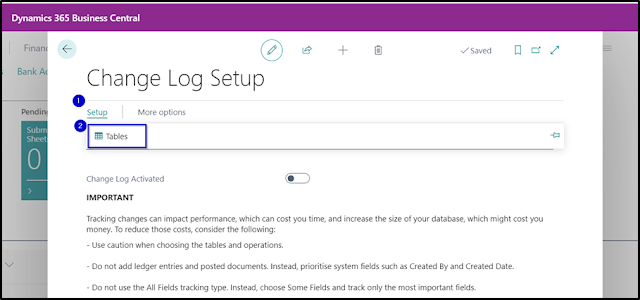
Change log is a useful tool to track data changes s in your Dynamics 365 Business Central database. Use this feature to record when data is inserted, modified, or deleted on specific tables.  First, on the Change Log Setup Page, select BC tables that you would like to set to record insert, modify and delete logs. You can filter the tables by ID or name.   Once you are all set up, go back to the Edit – Change Log Setup page and click on the Change Log Activated button as shown below. It is important that the BC session to be closed and re-opened so the change log will start recording as per the setup.  To review change log entries, navigate to   Change Log Entries page will show you the change records for the table fields that have been activated. You can also print the change log entries by clicking the Print button.  The following information can be used for filtering purposes and be able to report from it: #businesscentral #dynamics365 #microsoft #erpconsul...

Reason Codes for the Audit Trails in Dynamics 365 Business Central

Image
As we discussed in the previous blog post,  audit trails in Business Central begin with two trail codes:  Source  and  Reason.   Reason codes supplement the source codes and are used to indicate why an entry was created.  To set up  Reason  codes On the Reason Codes page, enter the first code in the Code field. In the Description field, enter an explanatory text.  To assign reason codes to journal templates On the line with the selected journal template, in the Reason Code field, specify the relevant code. The selected reason code will be copied to new journal batches created under this journal template.   Note: Reason codes also provide opportunities for problem patterns analysis. To use reason codes on sales and purchase documents   On the sales or purchase header, enter the code in the Reason Code field. Using Reason Codes allows the posted ledger entries to be filtered by reason code. Hope you enjoy the readi...

Source Codes for the Audit Trails in Dynamics 365 Business Central

Image
Auditing trails in Microsoft’s Dynamics 365 Business Central, like with any ERP, is fundamental to ensuring compliance.  In Business Central, audit trails begin with two trail codes: Source and Reason. A source code indicates where an entry was created.  All posted entries in Business Central are automatically assigned a source code so that transactions can be traced to their origin.  To set up source codes Navigate to Source Codes in Tell me and add new codes on the Source Code Page. To define source codes On the Source Code Setup page, for each each posting type and batch job, specify the relevant source code. To define source codes for General Journal On the  General Ledger Journal Template,  Source Code  field is filled in automatically when you select the Type of the General Journal template. Here are some examples: G/L Registers: G/L Entry: In the next blog, we will discuss Reason Codes for Audit Trails. #businesscentral   #msdyn365bc  ...